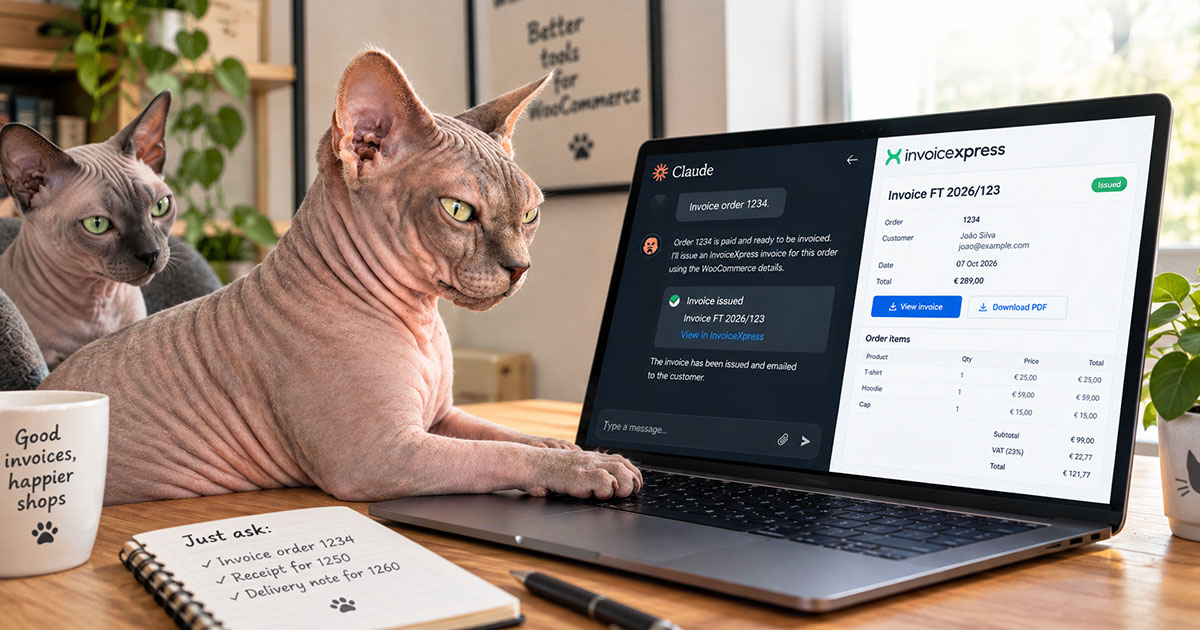
Starting with version 10.0 of Invoicing with InvoiceXpress for WooCommerce Pro, you can ask your AI assistant to issue your documents on InvoiceXpress, in plain language, exactly as if you had used the order actions on the order screen. For example:
- “Invoice order 1234.”
- “Order 1250 was paid by bank transfer, issue the receipt.”
- “Issue a delivery note for order 1260, loaded tomorrow at 9:30.”
This guide shows what the assistant can do, how it handles the decisions that are yours to make, and how to connect it to your shop in a few minutes.
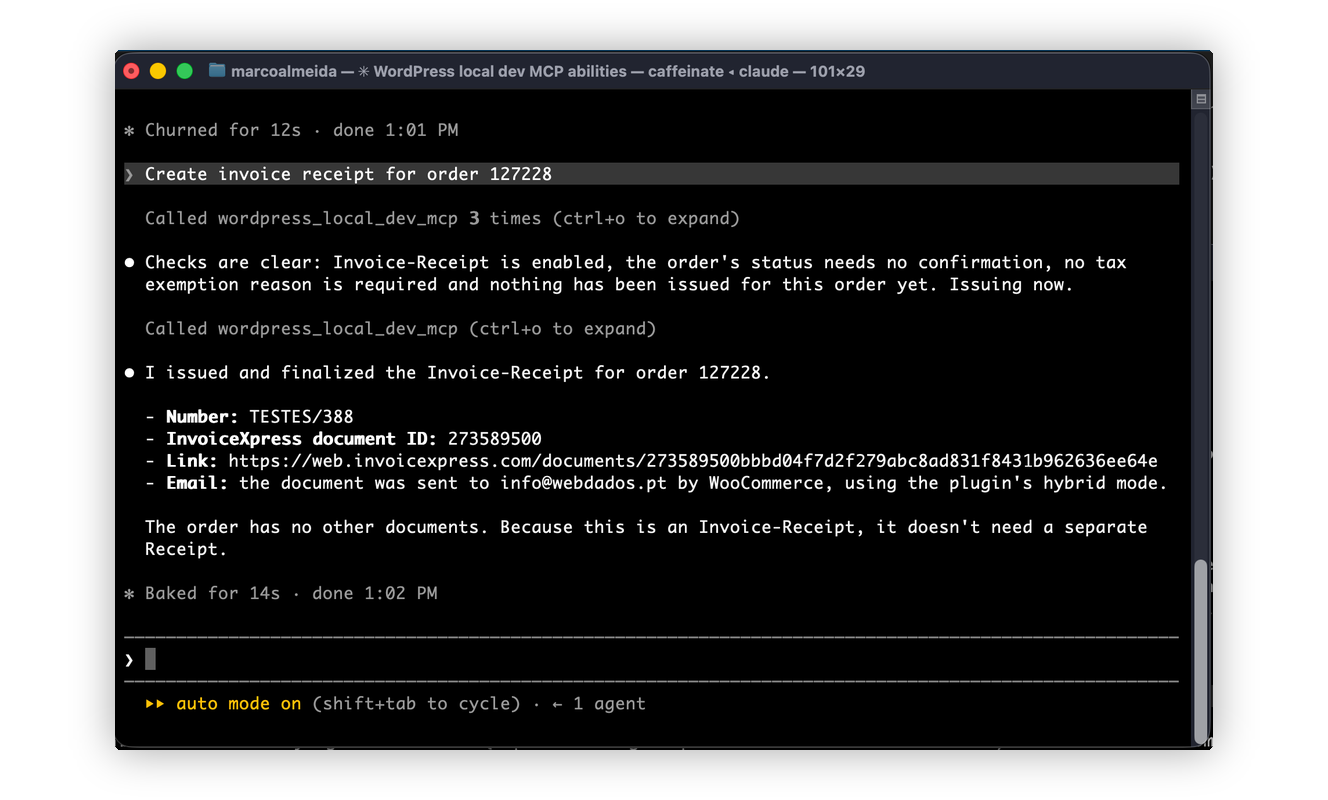
What you can ask
- Issue an Invoice, Simplified invoice, or Invoice-receipt for an order, with the automatic Receipt too if the plugin is set to issue it straight after the Invoice.
- Issue the Receipt for an Invoice already issued, once the payment arrives.
- Issue a Quote or a Proforma.
- Issue a Delivery note, with its AT Code when the plugin is set to get it straight away.
- Check an order: which documents it has, their numbers and links, and anything to decide before issuing.
- Prepare an order before issuing: the tax exemption reason, the document sequence, the delivery note load date and license plate, the observations and the PO reference.
Only the document types enabled in the plugin settings can be issued, and the settings are read again on every request.
It asks you before deciding
Invoices are legal documents and cannot be deleted once issued. So the plugin tells the assistant to ask you, instead of deciding, whenever there is a choice to make:
- Which document type, when more than one is enabled, and you didn’t specify which.
- Which tax exemption reason, when the order has lines without VAT. The assistant shows suggestions and where each comes from: your plugin settings, and the usual reason for the case (M05 for goods shipped outside the European Union, or M16 for goods sold to a business in another EU country with a VAT number confirmed in VIES). It never picks one for you.
- Whether to issue anyway, when the order is canceled, failed, or refunded, or not paid yet even though the document would say it was.
Here is what that looks like for an order shipped to a business in Spain:
You: Invoice order 1234.
Assistant: Order 1234 has no VAT, so it needs a tax exemption reason before it can be invoiced. The usual reason for goods sold to a business in another EU country, with a VAT number confirmed in VIES, is M16 (Artigo 14.º do RITI). Your shop’s own setting for EU businesses is also M16. Shall I use it?
You: Yes.
Assistant: Done. Invoice FT 2026/123 was issued and emailed to the customer. Here is the link to it on InvoiceXpress.
If everything is already set, for example, a paid order in a shop that only issues Invoice-receipts, the document is issued without any question.
How to connect your AI assistant, step by step
You need Invoicing with InvoiceXpress for WooCommerce Pro 10.0 or later with an active license, WordPress 6.9 or later, and an AI assistant that supports MCP (Model Context Protocol), the open standard that lets assistants such as Claude and Cursor use tools on other systems.
- Install the MCP Adapter plugin. In Plugins > Add Plugin, search for MCP Adapter, install it, and activate it. It is the official WordPress plugin that makes your shop reachable over MCP.
- Create an Application Password. In Users > Profile, for a user who can manage WooCommerce (Administrator or Shop Manager), add an Application Password (for example, “AI assistant”) and copy it. The assistant acts as that user.
- Connect your AI assistant to your shop. The MCP Adapter creates an MCP server at
https://your-shop.com/wp-json/mcp/mcp-adapter-default-server, and the assistant connects to it directly over HTTP, signing in with the username and Application Password. In Claude Code, run this in a terminal, with your own address, username, and Application Password:
claude mcp add --transport http my-shop https://your-shop.com/wp-json/mcp/mcp-adapter-default-server --header "Authorization: Basic $(printf 'your-username:xxxx xxxx xxxx xxxx xxxx xxxx' | base64 | tr -d '\n')"Code language: JavaScript (javascript)Other assistants that can add a remote MCP server with a custom header, such as Cursor, use the same address and the same Authorization header. Answers from WordPress can be long, so desktop chat apps with lower response limits may not handle them.
- Start with a question that changes nothing. Ask “Which InvoiceXpress documents does order 1234 have?”. The assistant reads the order and answers without issuing anything, which confirms the connection works.
- Issue your first document. Ask “Invoice order 1234” and answer any questions, if it has any.
Keep the Application Password private, and revoke it in Users > Profile if you stop using it. Setting up each AI assistant is outside the scope of our technical support, but the documentation includes details for the plugin’s side.
From invoice to DPD label in one conversation
If you also use DPD Portugal for WooCommerce, the same assistant can finish the job: “Invoice order 1234, issue its delivery note and create the DPD label.” The label carries the AT Code of the Delivery note, read straight from InvoiceXpress.
What it does not do
- Cancel documents or issue Return delivery notes: planned for a future version.
- Issue Credit notes on their own: the plugin issues them when you refund the order in WooCommerce, so they always match the refund.
- Change the customer’s VAT number: it comes from the customer at checkout.
Available today
Version 10.0 is available now as an automatic update, at no extra cost for every customer with an active license. If you do not have the plugin yet, you can get it at nakedcatplugins.com and see all its features at invoicewoo.com.
Questions or ideas for what the assistant should do next? Leave a comment or get in touch.