

WooCommerce gives you two ways to say who a coupon is for: a usage limit per user, and a list of allowed email addresses. Both are useful. Neither does what most shop owners assume, and that gap is where discount money leaks out.
This is a walkthrough of how to lock a coupon to the people it was meant for, starting with what WooCommerce does on its own and then what you need a plugin for. Everything past the first section uses Advanced Coupon Restrictions for WooCommerce.
What WooCommerce already does, and where it stops
Open any coupon and look at the “Usage restriction” tab. The “Allowed emails” field takes one or more addresses, with a * wildcard, and refuses the coupon for anyone else.
Here is the part that catches people out. WooCommerce checks that field against the billing email entered at checkout, as well as the one on the customer’s account. Nobody has to be logged in, and nothing checks that the shopper owns the address. So anyone who knows the allowed address can enter it as their billing email and the discount applies. Try it with a coupon of your own: as a logged-out visitor with no email entered, WooCommerce says “Please enter a valid email at checkout to use coupon code”, and once you type the allowed address, it goes through.
For a general promotion, that is fine. For a compensation coupon, a VIP offer, or anything with real money attached, the restriction is thinner than it looks.
Reserve a coupon for one customer
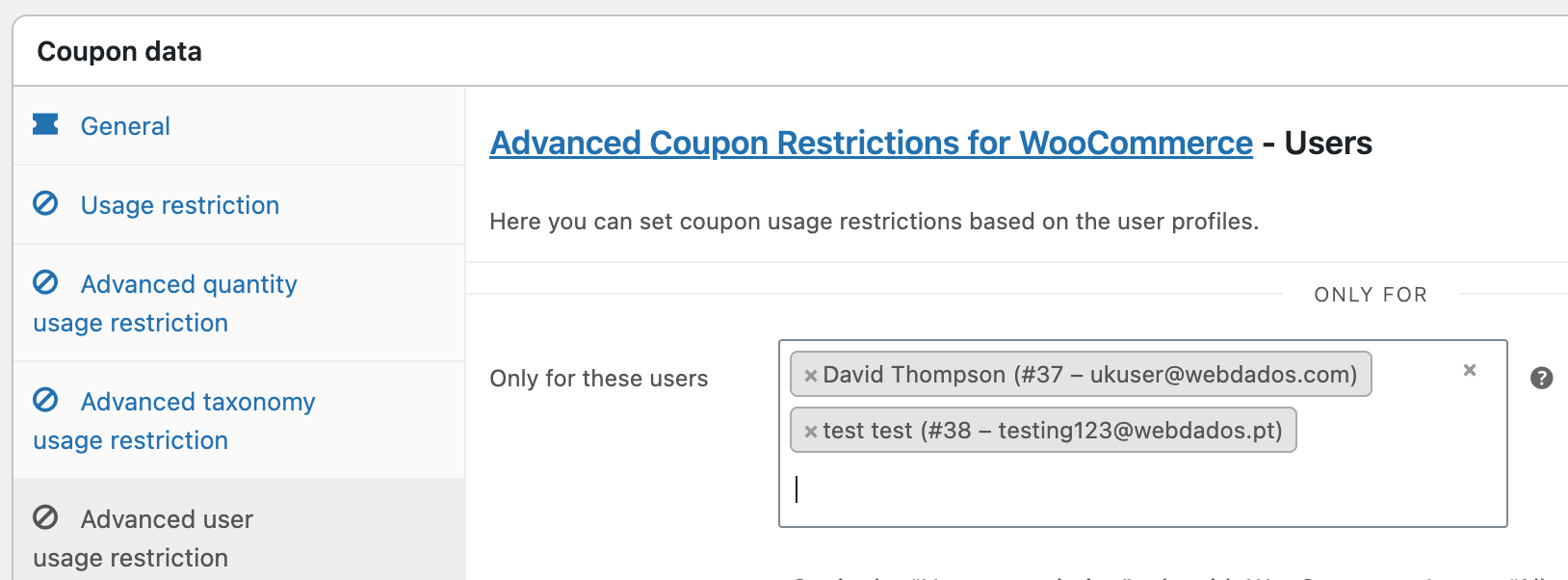
Edit your coupon and open the “Advanced user usage restriction” tab. At the top is an “Only for” section with a field called “Only for these users”.
Start typing a customer’s name or email and pick them from the list. Add as many as you need. From that point, only those accounts can redeem the coupon, and because WordPress decides who is signed in, there is nothing to forward.
Two consequences worth knowing before you use it. By definition, guests can never redeem a coupon restricted this way, so it forces the customer to log in. And if you also fill in WooCommerce’s own “Allowed emails” field, the customer has to satisfy both, because the two restrictions are checked independently.
Block a customer, or a whole email domain
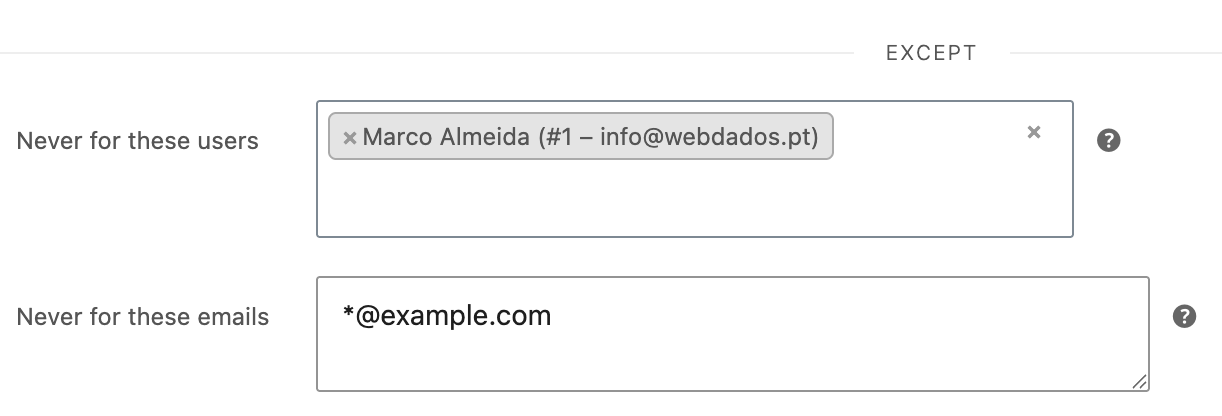
At the bottom of the same tab is an “Except” section, which does the opposite of everything above it.
“Never for these users” takes customer accounts, picked the same way. “Never for these emails” takes addresses, one per line or separated by commas, whichever you prefer pasting.
Blocked addresses accept the same * wildcard WooCommerce uses, so *@example.com blocks every address at that domain in one line. That is the practical answer to somebody cycling through disposable addresses to reuse a first-order discount.
Two details that matter. Blocked addresses are checked against the account email and the billing email entered at the checkout, so they work on guest orders too. And an account block only applies while that person is signed in, so if you are blocking someone who could simply check out as a guest, block their email address as well as their account.
One coupon for chosen roles and guests at the same time
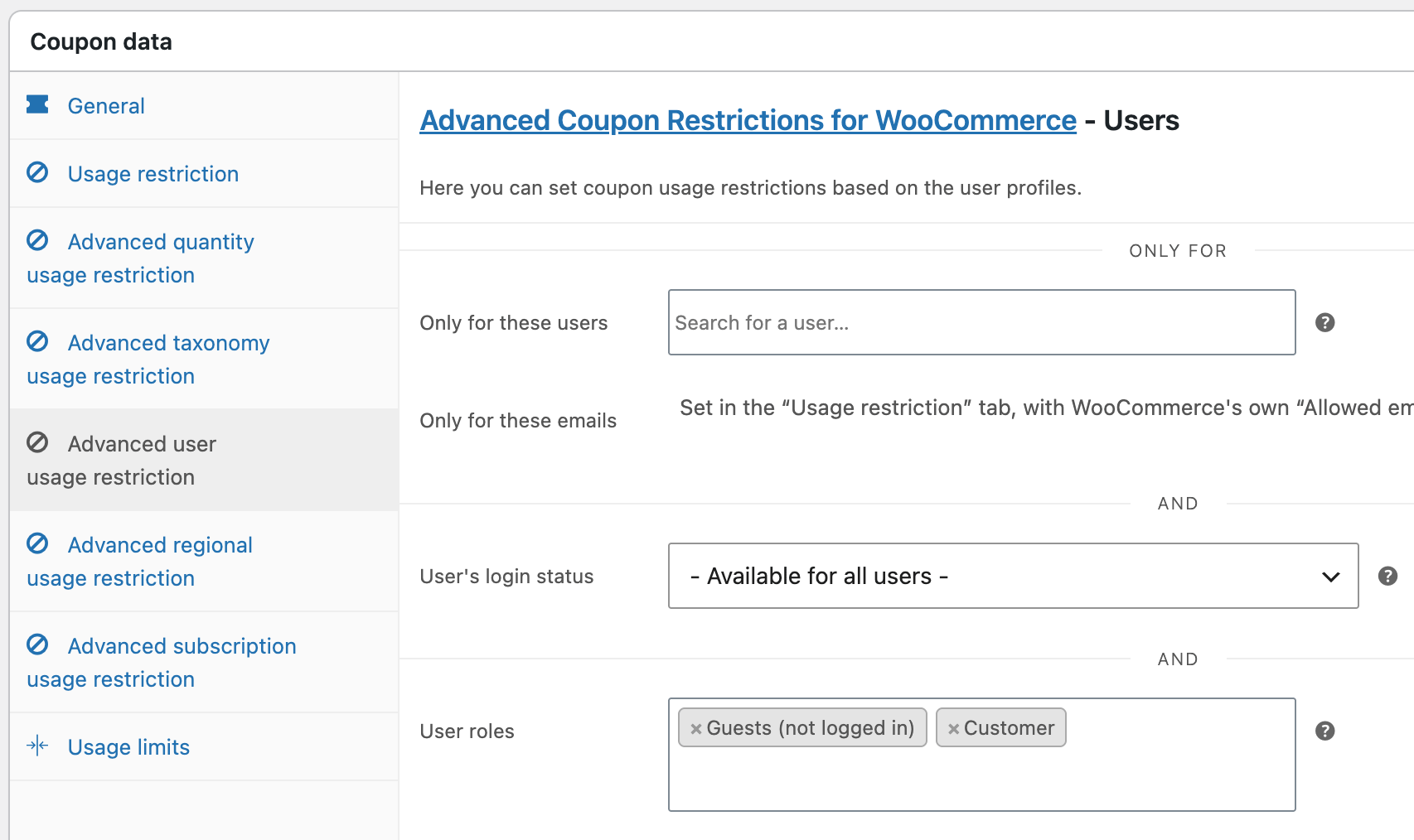
The “User roles” field, in the middle of the same tab, restricts a coupon to roles you pick: Customer, a wholesale role, whatever you have.
Until recently, choosing any role shut out every guest, because a visitor who is not signed in has no role at all. That made the common case awkward: a retail promotion for everyone except your wholesale accounts had no way to include guests.
The list now carries a “Guests (not logged in)” entry. Pick “Customer” and “Guests (not logged in)” together, and one coupon covers both, while your wholesale role stays out.
Reward customers by what they have spent
Also on the same tab, “User total amount spent” is restricted by lifetime spend on your shop.
“Zero” is a first-order coupon, for customers who have never bought. “At least …” rewards your best customers. “At most …” pushes quieter ones to spend more, and “At most … but spent something” does the same while excluding people who have never bought at all.
All four need a logged-in customer, for the same reason the roles field does: there is no spending history for a guest.
How the rules combine
Every restriction on this tab has to pass. They combine with “and”, never “or”, which is what the “And” separators between them mean.
The exception is the “Except” section. A blocked customer or address is refused whatever the rest of the settings allow, which is why it sits apart at the bottom.
So a coupon set to “Customer” and “Guests (not logged in)”, with “At least 500” spent, and one address blocked, reads as: a customer or a guest (not a user with the “wholesale” role, for example), who has spent at least 500, and is not that address.
Wrapping up
WooCommerce’s built-in email restriction is a hint, not a lock. If a coupon represents real money, restrict it by account, and block by address when you are keeping someone out rather than letting them in.
Advanced Coupon Restrictions for WooCommerce adds all of the above to the coupon screen you already use: https://nakedcatplugins.com/product/advanced-coupon-restrictions-for-woocommerce/