
Simple Checkout Fields Manager for WooCommerce, by Naked Cat Plugins, lets you manage the WooCommerce Blocks checkout’s core fields (remove them, make them required or optional) and add your own custom text, select, and checkbox fields. This page covers setup, licensing, and known limitations. For pricing and installation, see the product page.
Table of Contents
Support
How to request technical support?
If the issue you need technical support with is not covered on this page, click the link next to the license key, on the plugin settings, and fill out the ticket with your request.
Where do I report security vulnerabilities found in this plugin?
You can report any security bugs found in the source code of this plugin through the Patchstack Vulnerability Disclosure Program.
The Patchstack team will assist you with verification, CVE assignment, and take care of notifying us.
Does this plugin support the legacy/classic WooCommerce checkout experience?
No. This plugin allows you to manage and add custom checkout fields only on the new Block-based WooCommerce checkout experience.
Licensing
How to transfer the license to another domain?
You should ask for the domain change in your customer area, next to the original order details.
After you receive our reply confirming the license key is free, go to the old website settings, remove the key, and save. Then go to the new website settings, insert the same key, and save. If you cloned the website, the license key is in the database: you need to remove it, save, insert it again, and save again.
What happens if my license expires?
The plugin keeps working, your existing custom fields keep showing on the checkout, and their data keeps being saved normally. Two features are capped until you renew:
- Conditional visibility and required rules for custom and core fields stop being available
- Managing WooCommerce’s own core checkout fields (renaming labels, changing visibility or required status per field or per country) stops being available
Renew your license to restore these settings.
Renewing your license helps us continue improving the plugin, respond to changes in WordPress and WooCommerce, and provide you with reliable support. We highly recommend keeping it active.
General operation
Getting started guide
Install the plugin and go to WooCommerce > Simple Checkout Fields Manager. Insert the provided license code to activate it.
You’ll see three sections: “Contact information”, “Addresses (shipping and billing)”, and “Additional order information”. Click “Add field” on the section where you want your new field to appear (see “In which section should each field be placed?” below for guidance on choosing).
Choose a field type: Text, Select, Checkbox, or Select with fee per option (this last one requires WooCommerce 9.8 or above). Fill in the field label, slug (used to store the field on the order and user meta), and set the other field options. Save it.
Your new field is now showing up on your block-based WooCommerce checkout.
You can edit or delete any field at any time. The previous order values will not be erased from the database, but you’ll not see them again on the order edit screen. That’s a limitation of the current API.
You can also set visibility and required status for the WooCommerce core address fields on the checkout.
What’s the difference between disabling and deleting a custom field?
Disabling a field (“Disabled” toggle) hides it from the checkout, but keeps its definition and any previously saved values: you’ll still see it on the order edit screen for orders that already have it.
Deleting a field removes its definition and settings entirely. As mentioned above, its previously saved order and user data isn’t erased from the database, it just stops being editable or visible through this plugin’s admin screens. If you later add a new field using the exact same slug, that old data resurfaces again, since it’s stored and read using the slug alone.
In which section should each field be placed?
“Contact information” (saved to the order and user for next orders): any personal fields that are related to the user but not to the address, for example:
- VAT number
- Birthdate
- Passport number
- National ID number
- Preferred contact method (phone, email, WhatsApp)
- Newsletter opt-in
“Addresses (shipping and billing)” (saved to the order and user for next orders): any fields that are related to the address but not the user (as they’re duplicated on both addresses), for example:
- Contact person at the address
- Second phone number
- Location hints (landmark, gate code, floor/apartment number)
- Business hours for deliveries
- Tax ID for that specific address (if different from the user’s own)
“Additional order information” (saved only to the order and not to the user): any fields that are related to this specific order only, for example:
- Delivery date or preferred time window
- Include gift wrap
- Message to include on package
- Purchase order (PO) number, for B2B orders
- How did you hear about us?
Can the custom fields be ordered and placed between the core fields?
“Contact information” and “Additional order information” fields can only be shown after the core fields, but you can set the order of your custom fields after that.
“Addresses (shipping and billing)” fields can be placed in 5 positions: after the country, after the name fields, after the company field, after the country/address/city/postcode/state fields, and after all core fields. Inside each position, you can set a second position for your custom fields if you have more than one in each position.
Why is one of my address fields alone on its own line, stretched?
WooCommerce lays the address form out two fields per line. Some fields always take a whole line on their own (the country, company and address fields, and any checkbox), and the remaining ones pair up two by two. When the fields before it do not add up to a full line, a field is left alone on its line and stretched to fill it.
Which fields end up paired depends on how many are shown, so it changes if you add custom fields, remove core fields, or use conditional rules to show a field only in some situations. It is not something the plugin can decide for you.
To control it, edit the field, go to the “Advanced options” tab, and turn on “Full width”. The field then always takes a whole line, and the fields after it pair up again from a clean start. The option is only available for “Addresses (shipping and billing)” fields, since the other sections are single column, and it is not shown for checkbox fields, which WooCommerce already renders full width.
Note that this is a manual setting, not an automatic fix: if you later change which fields are shown, you may need to revisit it.
What are conditional rules, and which are available?
You can use conditional rules to make custom fields visible and/or required or not. You can create complex OR and AND rules with as many conditions as you want.
Most text-type conditions (any custom Text or Select field, and the core Email, First name, Last name, Company, Address 1, Address 2, City, and Postcode fields) share the same set of operators: is / is not / contains / does not contain / matches pattern / does not match pattern / is empty / is not empty. Custom Checkbox fields instead use is checked / is not checked.
These are the conditions you can use (version 7.3):
- Contact
- Core
- Email (text-type operators)
- Custom
- Any custom field (operators depend on its type: text-type operators for Text/Select fields, “is checked / is not checked” for Checkbox fields)
- Core
- Address
- Core
- First name, Last name, Company, Address 1, Address 2, City, Postcode (text-type operators)
- State, Country:
is one of/is not one of/is empty/is not empty, picked from a list - Phone (text-type operators)
- Custom
- Any custom field (same rule as under Contact, above)
- If the field you’re setting the rule on is not itself in the “Addresses” section, address conditions are offered twice, as separate “Billing Address” and “Shipping Address” groups, so you can target either one specifically
- Core
- Order (additional fields)
- Custom
- Any custom field (same rule as under Contact, above)
- Custom
- Cart and Checkout
- Core (provided natively by WooCommerce)
- Payment method:
is one of/is not one of, picked from your installed payment gateways - Needs Shipping:
true/false - Order Total (with tax):
is more than or equal to/is less than or equal to - Shipping Method:
is one of/is not one of, picked from your store’s shipping zones and methods - Total Quantity in Cart:
is more than or equal to/is less than or equal to. This is the sum of every product’s quantity, so a cart with 2 of product A and 3 of product B counts as 5
- Payment method:
- Custom (computed by the plugin, since WooCommerce doesn’t expose this data natively)
- Order Total (without tax), Order Sub-total (only products, with tax), Order Sub-total (only products, without tax):
is more than or equal to/is less than or equal to - Number of Different Products in Cart:
is more than or equal to/is less than or equal to. This counts distinct products/lines, not quantities, so a cart with 2 of product A and 3 of product B still counts as 2 (as opposed to Total Quantity in Cart, above, which would count 5) - Product Categories, Product Tags, Product Brands:
cart contains one of/cart does not contain one of, picked from your store’s terms - Any other product taxonomy/attributes via the
swcbcf_conditional_cart_product_taxonomiesfilter - Product:
cart contains one of/cart does not contain one of, searched dynamically by name so it works even with thousands of products. If you pick a variable product itself, any of its variations in the cart will match; if you pick a specific variation, only that exact variation will match
- Order Total (without tax), Order Sub-total (only products, with tax), Order Sub-total (only products, without tax):
- Core (provided natively by WooCommerce)
- Customer
- Core (provided natively by WooCommerce)
- Logged-in:
true/false
- Logged-in:
- Custom (computed by the plugin, since WooCommerce doesn’t expose this data natively)
- User Role:
is one of/is not one of, picked from your site’s roles, plus a “Guest” option to also match logged-out visitors directly within this same condition - Customer First Order:
true/false.trueif the customer has no previous orders, checking by account for logged-in customers and by email address for guests
- User Role:
- Core (provided natively by WooCommerce)
Is it possible to reorder WooCommerce Blocks’ core checkout fields?
Unfortunately, no (or not yet). The API is evolving constantly, and we are committed to including all the future possibilities in this plugin.
You can, however, remove/hide core address checkout fields, like “Last name”, “Company name”, “Street address”, “Apartment, suite, unit, etc.”, “City”, “State / County”, “Postcode / ZIP”, and “Phone”, as well as making them required or not, globally or per country.
What’s the “Pattern” option for?
That’s a way to limit the pattern/format of the inserted value on a text input by using regular expressions.
You can pick one of the common patterns below directly from the “Insert a common pattern…” dropdown next to the field, which fills it in for you (you can still edit it afterward), or type your own.
Here are the built-in examples:
- Only numbers:
^[0-9]+$ - Alphanumeric only:
^[A-Za-z0-9]+$ - Letters only:
^[A-Za-zÀ-ÿ\s'-]+$ - Email address:
^[a-zA-Z0-9._%+-]+@[a-zA-Z0-9.-]+\.[a-zA-Z]{2,}$ - URL (starts with http:// or https://):
^https?://.+$ - Phone number:
^[+]?[0-9\s()-]{7,}$ - At least 8 characters:
^.{8,}$
Why does the title attribute set on the advanced options tab not show when the customer hovers the mouse over the field?
The plugin sets the title attribute on the field, and there’s no specific implementation for tooltips; it’s just the HTML title attribute. Depending on the browser (including its privacy and accessibility settings), device, and the speed at which the user moves the mouse 😏, the tooltip might not show up.
Why aren’t the customizations applied in full to the My Account account information and address forms?
WooCommerce’s My Account “Account details” and address forms don’t yet use the same Blocks checkout field engine as the checkout itself. Your custom fields will still show up there, since WooCommerce reuses the same field registry, but conditional rules, custom validation, and other checkout-specific behavior aren’t guaranteed to work consistently on those forms, as they’re not running the full Blocks checkout experience.
Advanced operation
How are the fields stored in the database, and how can I fetch them?
The fields are stored on orders and users’ meta on the _wc_other/swcbcf/field-slug, _wc_billing/swcbcf/field-slug and _wc_shipping/swcbcf/field-slug meta keys.
You can see the meta key for each field by editing it and clicking on “Show advanced options”:
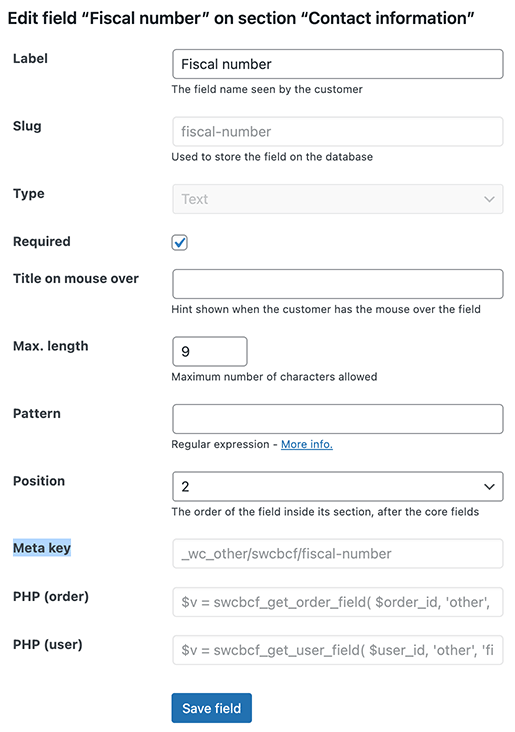
You can should use our helper functions to get each field value if you need to use them in your custom code. The PHP to be used for each field is also shown when you click on “Show advanced options”.
There are two helper functions:
swcbcf_get_order_field – To get order fields
Arguments:
$order_id– The order ID$location– The location: ‘other’ (for contact or additional fields), ‘billing’ or ‘shipping’ (for address fields)$field_slug– The field slug
swcbcf_get_user_field – To get user fields
Arguments:
$user_id– The user ID$location– The location: ‘other’ (for contact fields), ‘billing’ or ‘shipping’ (for address fields)$field_slug– The field slug
Is there a way to list every field this plugin has registered?
Yes, if you’re integrating with this plugin from your own code. swcbcf_get_registered_fields_keys() returns every field currently registered, including the ones coming from bundled field definitions, grouped by section:
array(
    'contact' => array(
        'meta_location' => array( 'other' ),
        'fields'        => array( 'field-slug', 'another-field-slug' ),
    ),
    'address' => array(
        'meta_location' => array( 'billing', 'shipping' ),
        'fields'        => array( 'field-slug' ),
    ),
    'order'   => array(
        'meta_location' => array( 'other' ),
        'fields'        => array( 'field-slug' ),
    ),
)
Combine the slug with one of the meta_location values to build the meta key, or pass them to the helper functions above. Call it on woocommerce_init or later, so that all the fields have been registered.
Is it possible to validate each field with custom PHP?
Since version 1.0, you can validate each field individually, but without having access to the other fields and values of the checkout, which means you still can’t do cross-validation between several fields.
It might be possible to get those values by accessing the customer or order object; however, this is not supported, and there are no guarantees regarding backward compatibility in future versions.
For individual field validation, you need to use our filter swcbcf_validate_callback_{location}_{field-slug} and return a string with the error description or nothing if the validation has passed, like in this example.
The complete filter name for each field is available on the field edit interface, under “developer info.”.
This filter is internal of our plugin and it’s called on a generic validation function we’ve defined at the validate_callback parameter for all fields when registering them with WooCommerce.
Is it possible to bundle field definitions with a plugin or theme?
Yes. If you’re a developer, you can ship a set of custom fields and core field overrides with your own plugin or theme, in a versioned, Git-controllable way, instead of asking your users to set them up by hand.
The workflow reuses our existing export tool: set the fields up on a dev or staging site using this plugin’s admin screen, click “Export field definitions”, and bundle the resulting JSON file with your plugin or theme. Then register its path with our filter:
add_filter( 'swcbcf_bundled_field_definition_files', function ( $files ) {
    $files[] = __DIR__ . '/checkout-fields.json';
    return $files;
} );
The path must be absolute, as in the example above. Relative paths are not resolved, and the file will be reported as not found.
Register the filter early: directly in your plugin’s main file, on plugins_loaded, or in your theme’s functions.php. The definitions are read the first time something needs them, which is when we register the fields with WooCommerce on woocommerce_init. A filter added after that point is never seen, and your fields simply won’t show up.
To change the fields later, set them up again on your dev or staging site and export a new file. Don’t edit the JSON by hand: its structure can change between plugin versions, and hand-written files aren’t supported. Exporting is what makes the file safe to commit, diff, and roll back like any other part of your code.
Fields and core field overrides loaded this way are never written to the database. They’re read fresh from the file on every request, so they always match what’s in your plugin or theme’s code. In the admin UI, they appear locked (no Edit or Delete option), with a lock icon showing which file they came from.
If an admin already created a custom field with the same slug as a bundled one, the bundled definition takes precedence. The admin’s field is left in the database untouched, but it’s flagged as inactive in the admin UI until it’s renamed or removed.
You can register more than one file. If two files define the same slug or the same core field, the first one registered wins, and a warning is shown in the admin UI.
Nothing fails silently. This plugin’s settings screen warns you when a file can’t be found or read, when it isn’t valid JSON, when a field entry is missing its slug, label or type (that entry is skipped and the rest of the file still loads), and when a slug or core field override is already defined by another bundled file.
Core field bundling only supports the “address” section, matching the rest of this plugin’s core field support.
There is currently no way to unlock a bundled field from the admin UI.
WPML Integration
How to translate the field labels to additional languages when using WPML and WooCommerce Multilingual?
Whenever you create or edit a field, the label should be set and is registered on WPML for translation under the website’s default language.
To translate to additional languages, you need to go to WPML > String translation > Filter by the “simple-woo-checkout-blocks-cf” domain and then translate each string.
Third-party compatibility
Create User Account from WooCommerce Guest Order
If you use our “Create User Account from WooCommerce Guest Order” plugin, your custom “Contact information” and “Address” fields are automatically copied over from the guest order to the new user account, alongside WooCommerce’s own core fields. This includes fields bundled by a plugin or theme (see “Advanced operation” above), not just the ones you created through this plugin’s admin screen.
Shop as Client Pro
If you use our “Shop as Client for WooCommerce PRO” plugin, selecting an existing customer at checkout pre-fills your custom fields with their previously saved values, alongside WooCommerce’s own core fields. This includes fields bundled by a plugin or theme, not just the ones you created through this plugin’s admin screen.
Multi-currency plugins
If your shop uses a multi-currency plugin, the swcbcf_select_with_fee_per_option_fee_value filter lets you convert a “Select with fee per option” fee to the customer’s currency before it’s applied to the cart. The swcbcf_select_with_fee_per_option_show_value filter lets you remove the fee amount from the option label entirely, if you’d rather show it some other way.
Known issues and limitations
For most of the issues or limitations, we are working closely with the WooCommerce development team in order to release fixes or new possibilities.
Other types of fields are not available
At the time, only this type of custom field are allowed by the WooCommerce Additional fields API:
- INPUT type text
- SELECT
- SELECT (with fee per option, developed by us on top of the regular select)
- CHECKBOX
There are issues opened for the following field types:
- INPUT type email, number*, tel, and URL: https://github.com/woocommerce/woocommerce/issues/45989
- INPUT type date: https://github.com/woocommerce/woocommerce/issues/45938
- TEXTAREA: https://github.com/woocommerce/woocommerce/issues/45988
* INPUT type number can be partially achieved by entering \d* as a pattern for the regular INPUT field.
The option to hide custom fields on order confirmation is not working consistently
This is yet not fixed in WooCommerce 11.0.0-beta.2
This is due to a (possible) bug in WooCommerce.
We reported this to WooCommerce: https://github.com/woocommerce/woocommerce/issues/51258
This was supposed to be fixed on WooCommerce 10.1, but it is still not working 100%
It’s not possible to add masks to input fields, in order to get formatted values like Portuguese Cartão do Cidadão, Brazilian CPF or CNPD, Phone numbers, etc
We suggested this to WooCommerce: https://github.com/woocommerce/woocommerce/issues/58484
In the meantime, you can check this blog post and achieve validation and masks for Brazilian CPF or CNPD.
It’s not possible to add extra classes or “data-” attributes to custom fields
The possibility to add extra classes and “data-” attributes to custom fields would improve the flexibility for 3rd party styling or interaction with the fields via JavaScript / REACT.
We suggested this to WooCommerce: https://github.com/woocommerce/woocommerce/issues/50795
A conditional rule that depends on another custom field can misfire on the very first page load
This is not yet fixed in WooCommerce 11.0.0-beta.2
This is due to a bug in WooCommerce.
If a field’s visibility or required condition depends on the value of another custom field (for example, showing an “Other” text field only when a select field is set to “Other”), the condition can incorrectly evaluate as true on the very first load of a brand new checkout session, before the referenced field has been given any value at all. It corrects itself as soon as that referenced field is given a value, and stays correct after a page reload from that point on.
We reported this to WooCommerce: https://github.com/woocommerce/woocommerce/issues/66943
Core field customizations (label, visibility, required, order) and custom field order don’t apply until a country is selected
This is not yet fixed in WooCommerce 11.0.0-beta.2
This is due to a bug in WooCommerce.
Managing WooCommerce’s core address fields (renaming them, hiding them, making them required or not, changing their order) works through the woocommerce_get_country_locale and woocommerce_get_country_locale_default filters. The second one is meant to provide the default/fallback values used before a specific country has been chosen, but WooCommerce Blocks Checkout doesn’t apply it: it shows the untouched WooCommerce defaults for every core field, and custom fields in their untouched default order, until the customer actually picks a country in the checkout form. Once a country is selected, everything (including our new bundled field definitions, see “Advanced operation” above) applies correctly, and stays correct for the rest of that checkout session.
We reported this to WooCommerce: https://github.com/woocommerce/woocommerce/issues/60542
Resolved limitations
These used to affect this plugin, but have since been resolved on WooCommerce’s side. Each entry notes which version of this plugin you need (if any) to benefit from the fix.
After the validation fails, the error message will not go away, even if the field is corrected
Fixed in WooCommerce 10.0. No update to this plugin is needed to benefit from this fix: it applies automatically as soon as your site runs WooCommerce 10.0 or above.
We reported this on WooCommerce Slack and got the confirmation that the fix will be available on WooCommerce 10.0.
We also asked why the validation messages are shown as global checkout errors instead of being tied to each field, and proposed that this be changed.
Validation callback not running for fields conditionally shown
Fixed in WooCommerce 10.0, confirmed working on our end as of plugin version 8.0. No code change was required on our side; version 8.0 is when we confirmed and documented that WooCommerce’s fix resolves it.
Since version 5.0, we have allowed for custom fields to be shown conditionally. In the meantime, we found out that the function registered for validation callback, which will call the filter mentioned above, was not reliably called (or was called for fields that should have been hidden) when custom fields had conditional visibility rules.
We reported this to WooCommerce: https://github.com/woocommerce/woocommerce/issues/58488